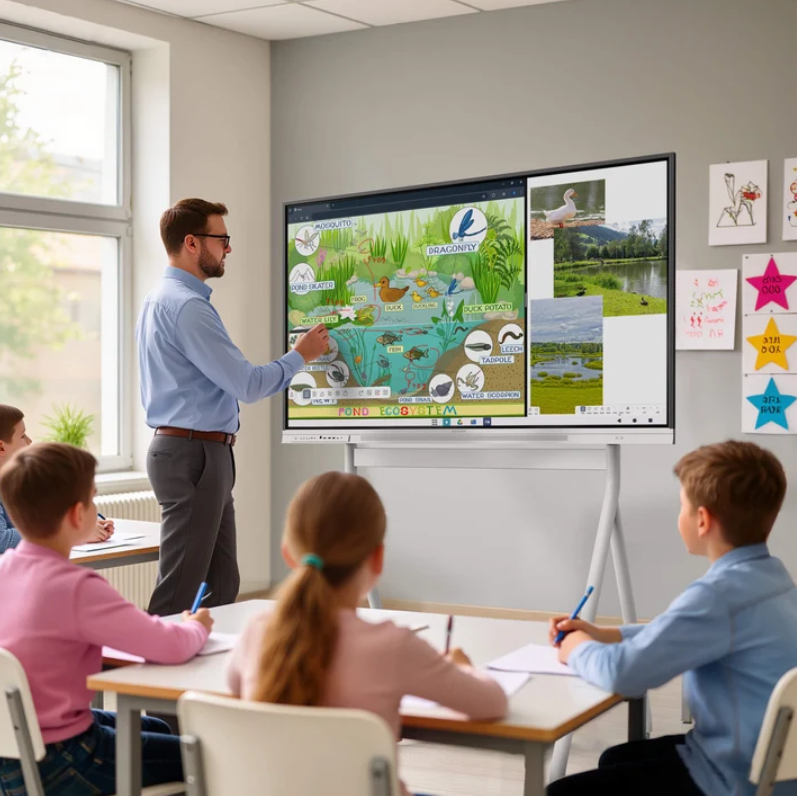
Interactive displays can support more than presentations. In a classroom, teachers need to explain concepts, collect student responses, compare ideas, and keep lesson materials organized. These tasks often involve several applications and different devices. If switching between them takes too much time, classroom activities can lose momentum. Schools should therefore assess how an interactive display fits into daily teaching, rather than focusing only on screen size or touch functions.
Application access, wireless casting, and collaborative workflows deserve particular attention. Teachers may need to annotate a lesson, open an online activity, and invite students to contribute during the same session. A suitable setup should make these transitions manageable while allowing teachers to save work for future lessons.
Native Apps and Their Role in Daily Teaching
Native apps can reduce the steps required to access frequently used classroom tools. Teachers may need a digital whiteboard, a browser, presentation software, or subject-specific learning resources. When these tools are accessible through the display’s supported environment, teachers can move between teaching activities without repeatedly changing devices.
However, schools should distinguish between preinstalled applications and broader application compatibility. A display may support certain native apps but require another method to access additional services. Procurement teams should check the supported operating environment, application availability, account requirements, and update process before making a decision.
Compatibility also affects lesson preparation. A teacher who develops materials on a laptop may expect to open the same files in the classroom. Schools should test common document formats, embedded media, hyperlinks, and interactive content. These checks help identify possible formatting differences before equipment is deployed across multiple classrooms.
Wireless Casting Connects Student Devices
Wireless casting allows teachers to display content from a laptop, tablet, or other supported device. It can be useful when a lesson includes specialist software, prepared slides, online resources, or student assignments. Instead of transferring every file to the classroom display, teachers can present content from the device they already use.
The practical requirements extend beyond starting a casting session. Schools should check which operating systems are supported, whether additional software is needed, and how devices connect to the classroom network. Network access policies, wireless coverage, and device permissions can affect the experience, even when the display itself supports casting.
Classroom routines also matter. Teachers may need to switch between their own screen and a student’s work during a discussion. A clear process for connecting, changing presenters, and ending a session helps prevent unnecessary interruptions. IT staff should test these actions with the devices that teachers and students actually use.
Security and access controls deserve consideration as well. Schools should establish who can share content and how sessions are managed in shared teaching spaces. A display used by several classes needs a practical process for ending sessions and clearing access to personal accounts. These measures help maintain orderly device use throughout the school day.
Shared Whiteboards Support Collaborative Learning
Digital whiteboards can turn a lesson from a one-way presentation into a shared activity. Teachers can write questions, organize concepts, and invite students to add examples. In group work, students can contribute ideas to a common canvas rather than submitting separate notes that must later be combined manually.
Application choice influences how this work takes place. Some teachers may prefer a built-in whiteboard for quick explanations, while others already use online platforms for project work. Schools should examine whether the chosen display supports their preferred collaboration tools and whether participants can contribute from their own devices.
For schools evaluating the NewBoard E series for education, the workflow is relevant to how teachers and students share ideas. Nework smart board solutions support the use of a built-in whiteboard alongside online whiteboarding applications such as Miro, Microsoft Whiteboard, and Lucidspark. Participants can work on a shared canvas, add comments, and develop ideas together in real time, subject to the selected application’s requirements.
Saving work is another important part of collaboration. A lesson may generate diagrams, questions, and student suggestions that remain useful after class. Teachers should know where the content is stored, which account owns it, and how it can be reopened. Keeping the work in the selected application can help teams continue discussions without recreating the original material.
Classroom Workflows Need Clear Handoffs
A well-planned workflow connects preparation, teaching, participation, and follow-up. Before class, teachers can prepare slides and digital activities. During the lesson, they may annotate content, cast a device screen, or open a collaborative canvas. After class, they need a straightforward way to retain useful results and prepare the next session.
Schools can evaluate this process through a short classroom trial. Ask teachers to complete a typical lesson rather than testing isolated functions. They might open a presentation, annotate a diagram, invite a student to share work, and save the final activity. Observing the entire sequence can reveal delays that a feature checklist may overlook.
Account management should be included in the trial. Teachers may use personal accounts for online whiteboarding, while school administrators need consistent policies for access and data retention. The IT team should clarify sign-in procedures, permissions, storage locations, and what happens when a teacher changes roles or leaves the school.
Training should focus on repeatable tasks. Short instructions for casting, opening apps, switching activities, and saving work are often more useful than a long list of technical features. Schools can also appoint staff members to gather feedback during the first few weeks. This creates a practical way to identify common problems and improve classroom routines.
Evaluate the Complete Teaching Environment
Hardware specifications provide only part of the information needed for purchasing decisions. Schools should also assess application compatibility, network requirements, collaboration features, account controls, and technical support. These factors influence how easily an interactive display fits into existing teaching practices.
Nework smart board products are used by more than 25,000 professional teams, according to the supplied product information. Their collaboration approach combines whiteboarding, screen sharing, and shared online canvases. Education buyers can use these functions as evaluation points, then verify the available configuration and software support against their school’s requirements.
The NewBoard E series for education should therefore be assessed through real teaching scenarios, not feature names alone. A structured trial can show whether teachers can move between applications, share student work, and preserve collaborative results with manageable effort. When schools verify these workflows before deployment, they can make purchasing decisions based on classroom needs and the practical demands of long-term use.
